Google Ads
How to Set Up Enhanced Conversions in Google Ads (Step by Step)
Cookie loss is eating your reported conversions. Enhanced conversions recovers them using hashed first-party data — here's how to turn it on, map the fields, and confirm it's actually working.

PPC & Creative Strategist
If your Google Ads conversion numbers feel low compared to actual sales or leads, cookie loss is a big part of why. Enhanced conversions recovers a meaningful share of it by matching your first-party data — email, phone — against signed-in Google accounts, privately and after hashing.
It's free, it takes an afternoon, and it usually improves both reporting accuracy and Smart Bidding performance. Here's the step-by-step, plus how to confirm it actually works, because a silent misconfiguration is the common outcome.
TL;DR
What it actually does (and the privacy part)
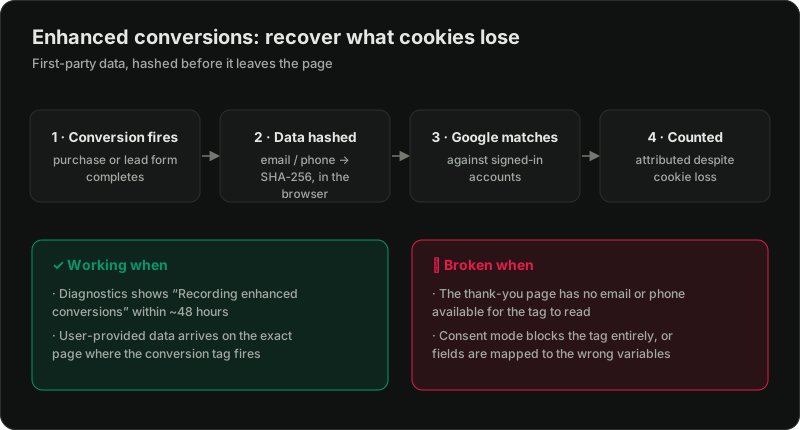
When a conversion fires, enhanced conversions takes the customer data you already collected — email, phone, name, address — hashes it with SHA-256 in the browser before it's sent, and Google matches those hashes against hashed signed-in account data. Matched conversions that cookies alone would have missed get counted and attributed. Google never receives the raw values, and you're using data the customer gave you directly.
The practical payoff: more complete conversion data, which means more accurate reporting *and* better Smart Bidding, since bidding is only as good as the conversions it can see.
Before you start
Step 1: Turn on enhanced conversions
In Google Ads: Goals → Conversions → Settings → Enhanced conversions. Turn it on, confirm the terms, and choose your setup method — Google Tag Manager is what I recommend for anything beyond a trivial site.
Step 2: Map your customer data (the step that matters)
This is where most setups silently fail. Enhanced conversions can only hash data it can find on the page where the conversion fires.
In Google Tag Manager:
1. Open your Google Ads Conversion Tracking tag (the one firing on your thank-you/confirmation page).
2. Expand Enhanced Conversions and set "Include user-provided data."
3. Choose how to supply it:
user_data object on conversion (best for Shopify/checkout, where order email is reliably available).4. Match the data to the page. The confirmation page must actually contain the email or phone. A thank-you page that shows only "Thanks!" with no customer data has nothing to hash — this is the #1 failure. If needed, expose the value through the dataLayer, session state, or a server-rendered variable — never in the page URL, since URLs leak raw PII into browser history, server logs, and analytics referrers before Google ever hashes it.
If your GTM foundation isn't set up yet, start with the GTM for Google Ads guide first.
Step 3: Publish and test
1. Use GTM Preview mode to load a real conversion and confirm the conversion tag fires *with* user-provided data attached (Preview shows the enhanced-conversions fields).
2. Check the values are populated, not blank — blank means your variable mapping is wrong.
3. Publish the container.
Step 4: Confirm it's working (don't skip this)
Within 24–72 hours, check Goals → Conversions → your action → Diagnostics / Enhanced conversions status. You want to see "Recording enhanced conversions" or a healthy match rate. If it reports missing data or errors, your field mapping or page data is the problem — go back to Step 2.
Working when: diagnostics shows recording within ~48 hours, and user data reliably reaches the conversion page.
Broken when: the confirmation page has no email/phone to read, consent mode blocks the tag, or fields are mapped to the wrong variables.
Enhanced conversions vs offline conversions
They solve different problems and pair well. Enhanced conversions recovers online conversions lost to cookie decay — best for ecommerce and instant online leads. Offline conversion tracking feeds back what happened *after* the click, in your CRM — essential for lead-gen sales cycles. Serious lead-gen accounts run both; the offline half is covered in the offline conversion tracking guide. Either way, verify the result — reported numbers still won't perfectly match your store, and that's expected, as explained in why the platform numbers don't match.
Want it set up and verified properly?
Related reading:

Written by
Vince Servidad
PPC & Creative Strategist
I manage Google Ads and Meta Ads for ecommerce, healthcare, SaaS, events and nonprofits, with creative strategy, Shopify development and conversion tracking.