Google Ads
How to Set Up Offline Conversion Tracking (Teach Google & Meta Which Leads Actually Buy)
The single highest-leverage fix for lead-gen accounts, done step by step: capture the click ID, record the outcome in your CRM, and import won deals back so bidding optimizes for buyers — not form-fillers.

PPC & Creative Strategist
If you run lead-gen ads, this is the most valuable setup you're probably missing. By default, Google and Meta only know that a form was submitted — not whether that lead was qualified, booked, or worth ₱50,000. So they optimize toward whoever fills forms most easily, which is rarely your best customer.
Offline conversion tracking closes that gap. You feed the real outcome — qualified, won, deal value — back to the platform, and bidding starts hunting for people who look like your actual buyers. Here's how to set it up, step by step, without a developer for the basic version.
TL;DR
_fbc cookie for Meta) in a hidden field when the lead submits.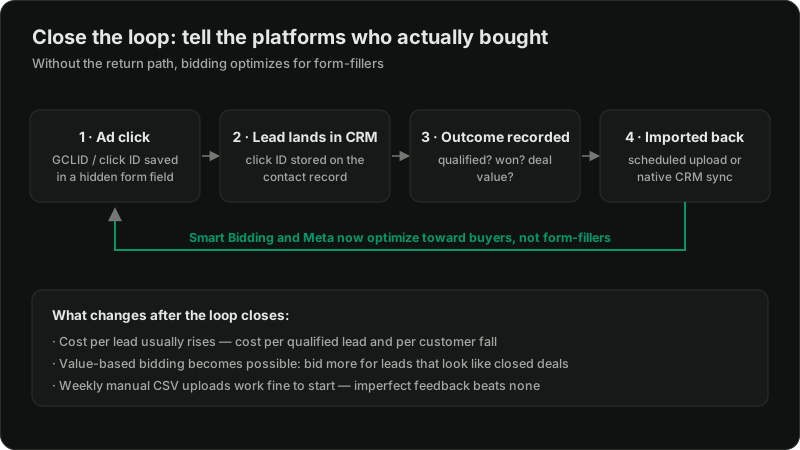
Why this matters more than any bidding tweak
Platforms optimize toward whatever conversion you report. Report "form submitted," and they find cheap form-fillers. Report "became a ₱50,000 client," and they find more people like that. This one change routinely moves cost-per-qualified-lead more than months of audience testing — it's the mechanism behind the results in getting leads but no clients.
Step 1: Capture the click ID at form submission
When someone clicks your ad, the platform appends a click identifier to your URL — gclid for Google, fbclid for Meta. You need to grab it and carry it through your form.
The no-code path (most form builders):
1. Add a hidden field to your form named gclid for Google. For Meta, capture the _fbc cookie the Meta Pixel writes — not the raw fbclid — because the Conversions API matches on _fbc (formatted fb.1.<timestamp>.<fbclid>), which the Pixel builds for you from the click.
2. Use your form tool's URL-parameter capture — most (Elementor, Gravity Forms, Typeform, JotForm, native Shopify contact apps) can auto-populate a hidden field from a query string. Point it at the matching parameter.
3. For Google specifically, enabling auto-tagging in the Google Ads account (on by default) is what puts the GCLID on the URL in the first place — confirm it's on.
The slightly more robust path: store the click ID in a first-party cookie on landing via Google Tag Manager, then read the cookie into the hidden field at submit. This survives visitors who browse a few pages before converting. If your GTM is already set up for conversion tracking, this is a small addition.
Test it: click your own live ad (or add ?gclid=TEST123 to the URL), submit the form, and confirm TEST123 lands in your CRM record. If it doesn't, nothing downstream will work — fix this before continuing.
Step 2: Store the click ID on the lead record
Wherever leads land — HubSpot, Pipedrive, a Google Sheet, a Shopify customer note — the click ID has to be saved alongside the contact. Most CRMs map a hidden form field to a custom contact property automatically. If you're running on a spreadsheet, make sure the form pipes the hidden field into its own column.
You're building one linked row: lead + click ID + (later) outcome + value. That row is the entire mechanism.
Step 3: Record the outcome your sales process produces
This is the human part, and it's where most setups quietly die. Someone has to update each lead's status as it moves: *new → qualified → booked → won/lost*, with the deal value when it closes. A CRM pipeline does this naturally; on a spreadsheet it's two columns (stage, value) your team keeps current.
Decide which stage you'll optimize toward. "Qualified" gives faster feedback (days); "won" is the truest signal but slower (weeks). Many accounts import both as separate conversion actions and let Google weigh them. The economics behind picking a stage are in how much to spend on ads.
Step 4: Import the outcomes back to the platform
Google Ads (offline conversion import):
1. Create a conversion action of type Import → from clicks, e.g. "Qualified Lead" and "Won Deal."
2. Build a CSV using Google's template headers exactly: Google Click ID, Conversion Name, Conversion Time, Conversion Value, Conversion Currency.
3. Upload under Goals → Conversions → Uploads. Weekly is fine; schedule it via Google Sheets link for hands-off imports.
4. Set "Won Deal" as a primary action for bidding and demote the raw form-fill to secondary.
Meta (offline / conversions API for CRM):
Meta's version runs through the Conversions API or a CRM integration (Zapier, native HubSpot/Salesforce connectors) that sends the qualified/won event back with the fbc identifier. The principle is identical: report the real outcome, not the form fill. The event-quality mechanics are in the Meta conversion tracking guide.
What to expect once it's live
Common failure points
?gclid=TEST.Want this built and validated for you?
Related reading:

Written by
Vince Servidad
PPC & Creative Strategist
I manage Google Ads and Meta Ads for ecommerce, healthcare, SaaS, events and nonprofits, with creative strategy, Shopify development and conversion tracking.